To add a new resident or patient to your Teton dashboard, you can do this from the Desktop or the App.
Desktop:
On the main Overview page, click on the resident card for the resident that has left your facility. The right hand side panel will appear, showing more information about that resident. At the very top of the panel, you will a button labeled 'bed settings'.
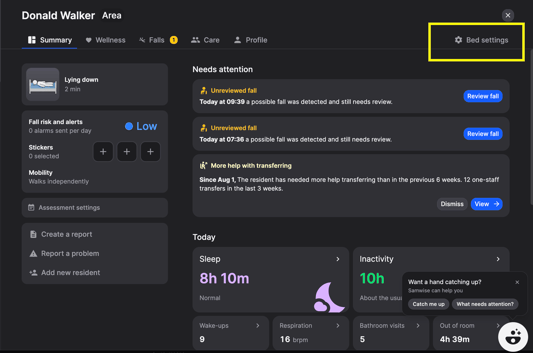
A pop up will open that gives the option to 'Add a Resident' or 'Move a resident'. You can also disable the sensor if needed. Adding a new resident will also request you to enter the reason the previous resident moved out.
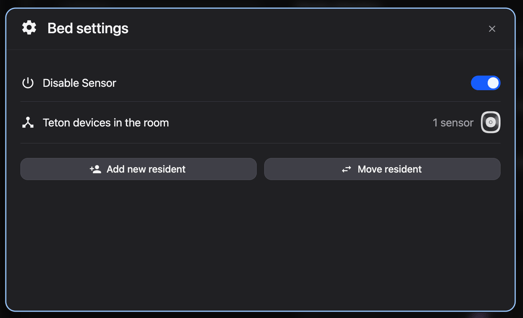
If a resident has moved out, but no one is set to move in. Simply 'disable sensor' and enter the reason for the move out. When a new resident is ready to move in, you'll simply select that card, navigate to bed settings, and add the new resident and enable to sensor.
On Mobile App:
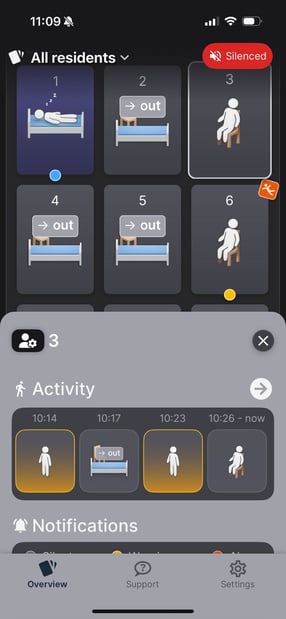
Select the resident care of the resident who is no longer at your facility. On the top left of the grey panel that appears, you will see an icon of a person with a cog (next to the resident name). Please click on this. You will then see the below screen pop up and fill out the information.
 .
. .jpeg?width=287&height=622&name=WhatsApp%20Image%202025-08-06%20at%2011.10.02%20(1).jpeg)