Has a new resident or patient moved into the room? How to create a new resident or patient in Teton!
When a new resident moves in or a new patient comes to the room, you can use the “new resident” function to clear data from the previous patient or resident.
It only takes a moment - here's what you need to do:
1. Find the resident or patient card in the room where you want to create a new resident.
2. Find the function to create a new resident/patient:** On a computer/tablet, there will be a “+” in the top right corner next to the resident's name or the bed room. On a mobile phone, there will be a “gear” as shown below:
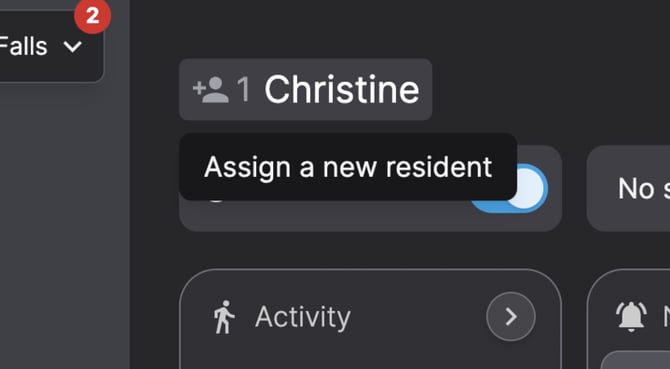
3. Enter information about the new resident or patient:
- On computer/tablet: A new window will open. Click on “Add new resident”, enter the name (only relevant in municipalities), and select the time the new resident arrived.
- On mobile: Enter the name (if applicable), and select the time directly on the screen.
- Continue: Once you have entered the name/residential no. and selected the correct time, press “continue”.
- Note: In hospitals, you cannot change the room number - simply select the time the new patient arrived
- Select reason: Select the reason why the former resident moved out of the home by opening the drop-down menu where it says ‘select reason’. Choose from the available options.
4. Press confirm: You will now see a warning that the action cannot be undone. All previous data (graphs, drops, risk settings, etc.) will be reset. Are you sure? Click “Yes” to confirm.
5. Done! You have now successfully created a new citizen or patient, and the system is ready to record new data.