Here is your guide on how to log into Teton's mobile and desktop product.
Mobile
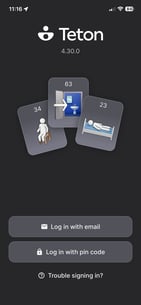
- Find the 'Teton Alerts' app on your work mobile device. It is the App on the bottom right of the below image.
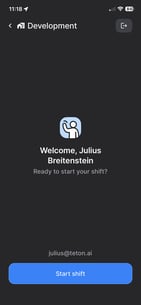
- Click on the App and press 'Start shift' and choose the beds or areas, that you are responsible for. After choosing beds press 'Confirm' and you'll be logged in.
- If the app is asking for an 'access code' it's because the app isn't already attached to your department.
Computer and tablet
- Go to the website app.teton.ai
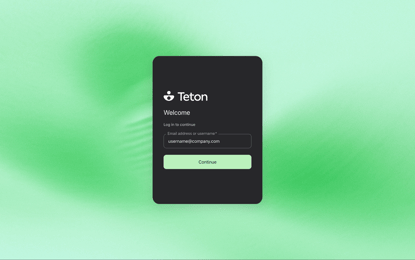
- Write your departments username and press continue.
- Input your password.
Please watch this video to take you through the above flow.
Limited access users
At some sites only certain users are allowed to change the resident settings. If don’t have access to your location’s login credentials or you’re in a rush at the start of a shift, then you can press ‘Quick start’ and get straight to work without spending time logging in. This ‘quick login’ version of the app still gives you your resident overview and you will still receive alarms, you just can’t change any resident settings or review any falls. You can always log in later.