Accessing a Resident Card
From the main App overview screen, tap on a resident’s room number or name (depending on how you have named your residents). A light grey banner will appear at the bottom of your screen. Drag this banner upwards to view the full Resident Card.
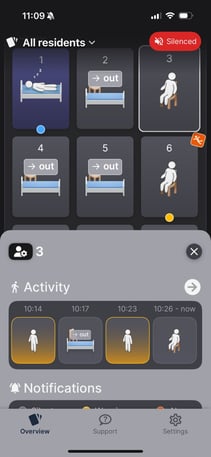
Activity
The top section shows recent movements of the resident (e.g. walking, sitting, lying, out of bed). Swipe left/right to scroll through the last 24 hours of movement. Each activity is colour-coded: yellow for movements that trigger a warning (e.g. standing), red for movements that trigger an alarm (e.g. lying on the floor), and grey for movements with no alert (e.g. still in bed). This helps you instantly identify if any risk-related movement has occurred recently.
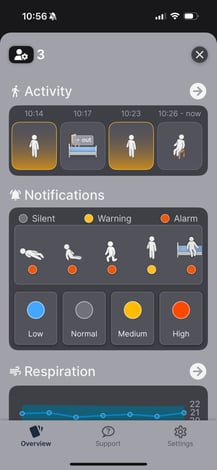
Notifications
This section allows you to understand the level of alarm/notification that has been set for each resident's movements. Along the top, it shows the icons representing each position the resident can be in (e.g. sitting on bed, standing, kneeling, lying down). Alert settings appear beneath each icon: silent (no alert is sent), warning (staff receive a soft notification), or alarm (staff receive a loud alert on their phone). If you have the correct role access, you can tap an icon to customize when and how you're alerted based on each resident’s risk level. For example, you may want a warning when a resident sits up in bed, but an alarm if they are on the edge of the bed.
Respiration
This section displays the resident’s breathing rate in breaths per minute. A blue band shows the resident’s typical range (e.g. 20–22 brpm). A dot shows the most recent 24-hour average. A blue dot means the average is within range; an orange dot means it is outside. If a dot is orange, it could indicate irregular breathing. This is a quick way to spot potential changes in a resident's condition.
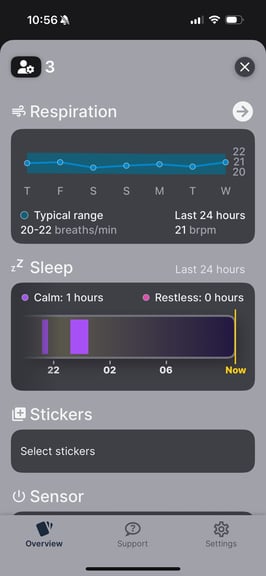
Sleep
This section gives you a breakdown of sleep quality over the past 24 hours. Calm sleep is shown with purple bars, and restless sleep is shown with pink bars. The timeline at the bottom shows when calm or restless sleep occurred (e.g. between 22:00 and 06:00). You can use this to track how well a resident is resting, which may help explain behaviour or flag concerns.
Stickers
Tap “Select Stickers” to add context-specific tags to a resident. You can select up to 3 stickers at a time. Common stickers include: Recent Fall, Fall Risk, Bed Guard, Hospitalized, Isolation, and Aggressive. Stickers are a simple way to communicate important resident information across shifts.
.jpeg?width=200&height=434&name=WhatsApp%20Image%202025-08-06%20at%2010.57.27%20(1).jpeg)
Turning Off the Sensor
At the bottom of the card is the Sensor toggle. Tap “Sensor” and choose a reason for turning it off (e.g. "Resident hospitalized", "Resident request"). The sensor will temporarily stop monitoring this room. Use this only when appropriate and always log a reason.
Summary
The Resident Card is your go-to view for real-time information. It helps staff react quickly to activity and fall risks, monitor sleep and breathing trends, personalise alert settings per resident, and communicate context with stickers.