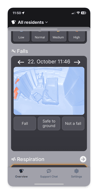
When a fall occurs, the sensor detects it and then creates an anonymised 30 second animation of the fall. Staff have the opportunity to review this animation in order to understand what happened and to assess whether the resident needs increased supervision after the fall has occurred.
Day to day we want to provide as much dignity and privacy to the resident as possible, we do this by only showing the icons on the resident card. With the animations, we want to maintain this dignity, while give you as much insight as possible into what happened, so that you can provide the best care for the resident when they need it the most.
How and why to use fall animations
Looking through an animation can help you understand the nuances of why a resident ended up on the floor, and answer questions like:
- Was it a serious fall where they were injured?
- Or did they gently lower themselves to the ground?
- What caused the fall? (for example, was there some furniture that they tripped over?)
- How could we better prevent this resident falling in the future?
fall clip - watch here (An example of a fall animation. People are highlighted in red. This is not a real fall, we created this as an example).
How can the sensor create these animations without filming all the time?
The sensor is constantly creating these animations, but it only saves them if it sees a fall during those 30 seconds, otherwise it instantly deletes them. This allows the system to create fall animations, without having to save anything that isn’t related to the fall itself.
Reviewing Falls
When a fall comes in, it needs to be reviewed. This means going in, watching the animation, and selecting reviewing what kind of fall it was. This is done as follows:
- Inside the fall area, select the corresponding fall (you will see a list of dates and times that an animation as been generated).
- If a fall hasn’t been reviewed it will be orange.
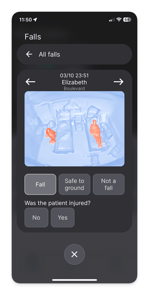
- Click on it, and three options will come up: Fall, safe to ground, not a fall.
- In some cases we will have send an animation for something we thought was a fall, but it wasn’t, for example a resident falling asleep on the floor. In this case marking it as not a fall, will remove the animation.
- Choosing ‘fall’ will then also create the option to make it as a fall with or without injury.
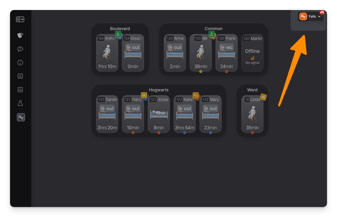
Unreviewed falls will be shown in orange
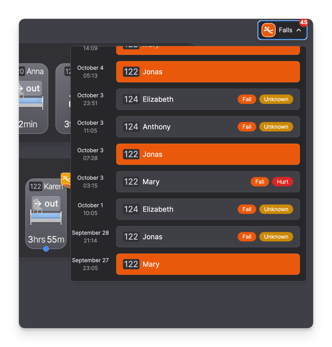
Reviewing a fall helps your filter falls, and remove incorrect falls
Navigating to falls on computer
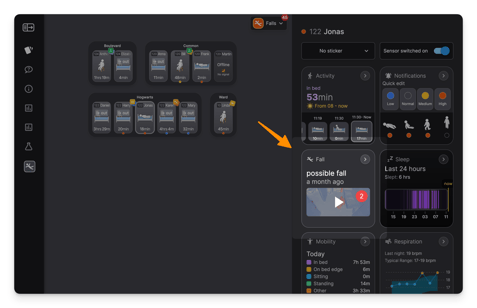
On the computer you can access falls in two ways. Either you can select the ‘falls’ drop down, or from within the resident’s information panel.
Using the falls drop down:
- Select the fall drop down menu in the top right corner of the overview
- Scroll through the list and select the animation you want to see. Unreviewed falls are highlighted in orange
- This will take you to the animation within the resident’s information panel.
Navigating to falls on mobile
On the computer you can access falls in two ways. Either you can select the ‘falls’ menu, or from within the resident’s information sheet.
Using the falls menu:
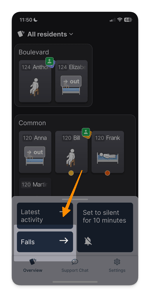
- Swipe up on the bottom sheet on the overview, and select ‘falls’
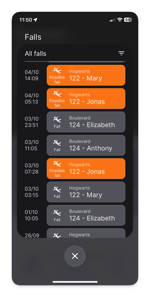
- You will be shown a list of all falls from your location.
- Falls that are not reviewed are orange, reviewed falls are grey.
- Select the fall you want to watch, and you’ll be taken to a view where you can watch and review the fall
- From here you can either exit out completely using the ‘X’ icon, or go back to the fall list
Opening a fall from within the resident’s information sheet:
- Tap on the resident’s card to open up their information sheet
- If they have a fall associated with them, the fall widget will be visible
- Here you can go through all their falls and review them