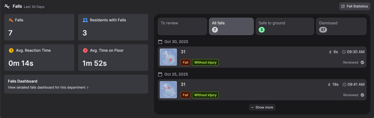
This feature is designed to give you a complete, practice-oriented overview of your department or community. You can see when things are busiest, spot health trends among residents/patients, review fall incidents, and much more.
How to Find the Department View (computer/tablet only)
The Department View can be accessed via the side menu on the homepage.
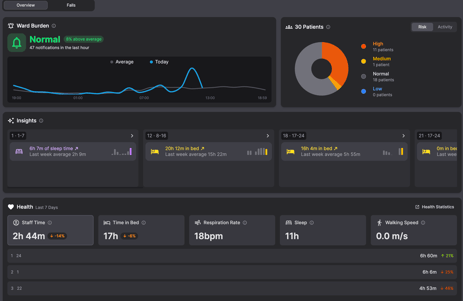
This will lead you to the 'Overview' section. This dashboard gives you information on:
- How busy the ward/floor is, according to number of phone notifications that staff receive about the residents, and in relation to the average ward burden. This can help to appropriately determine allocation of tasks on a given day and prepare staff for a busy shift ahead of time
- The number/percentage of residents at each risk level
- Insights on key changes in resident behaviour and patterns (e.g. sleep, bathroom visits, mobility etc) in the past week
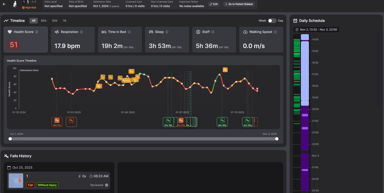
- Trends in resident health (such as time spent with staff, time in bed, respiration, sleep and walking speed), with information about highly ranked residents
- Snapshot of the recent falls that have happened
- Coverage overview - detailing a live view of how many staff members are logged on and the percentage of residents that are being covered by the app
Filter View by Area
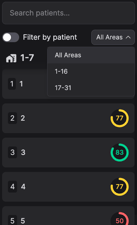
You can choose which area(s) you would like to see information about.
In the left side panel, you can select one or more areas you want to display data for. Click the drop-down menu called ‘All areas’ at the top of the panel. Tick the area(s) you would like to include in the view.
Select the Resident/Patient You Want to View Information About
You can easily select the resident/patient whose extended information page you wish to view:
- Find the resident/patient in the left side panel and click on them.
- You can also click the resident’s/patient’s name anywhere else in the Department View.
- A new page will now open with a range of health information and statistics.
You can also click on the 'Filter by patient' button, to select particular residents to view.
View and Review Fall Incidents in the Department
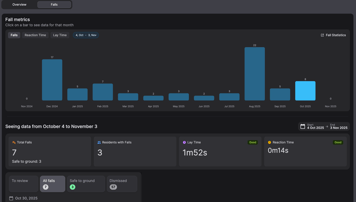
The Department View gives you a simple overview of fall incidents in the department from the last 30 days and allows you to review them.
Go to falls in two different ways:
- Scroll down on the main page and use the fall box. This only shows a snapshot of all the information.
- Switch to the ‘Falls’ category at the top of the page (next to the ‘Overview’ category). Here you can see even more details, such as number of falls per month, response time, time spent on the floor, etc.
You review a fall the same way as usual.
Or, if you scroll down through the 'Overview' section.