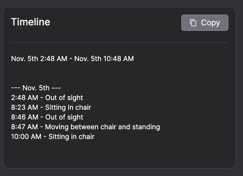
Sometimes documentation work can feel overwhelming, and there may be a need for a quick and accurate way to record a resident's or patient’s activities over a given period of time. With Teton, valuable data about activity, sleep, and respiration in the home or room is automatically collected, which can then be compiled into a clear summary. With a single click, you can copy the summary and paste it directly into your workplace’s documentation system.
How to find the summary function (computer/tablet only)
-
Click on the resident/patient for whom you want to create a summary.
-
At the bottom of their information panel, you’ll find a box with the ‘Summary’ function.
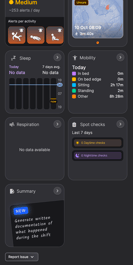
3. Click the blue button ‘Generate Summary’ to produce an overview and a timeline.
How to use the summary function
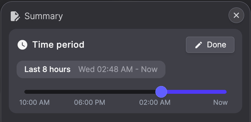
- Start by selecting the time period you want a summary for by dragging the blue dot on the timeline. You can go back a maximum of 24 hours.
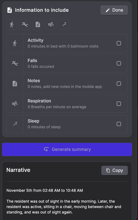
- Choose which information you want to include in the summary by clicking the small icons. You can select between activity, falls (if any occurred during the selected period), sleep, and respiration.
-
Click the blue button “Generate Summary” to produce an overview and a timeline.
-
Click the “Copy” button if you wish to insert the information into your documentation system.